.png)
Users, org admin, and primary user
Settings → Users is who can sign in to GivFlow. Everyone with a confirmed login has full access. The only limit is adding someone to budget notifications instead of inviting them as a user.
Open Users
- In the left sidebar, click Settings.
- Open the Users tab. Settings tabs: Organization, Users, Joint Donors, Email, Custom Reports.
The page title is Users. Columns: Email, Confirmed, and Remove User. An Org Admin badge can appear next to an address.
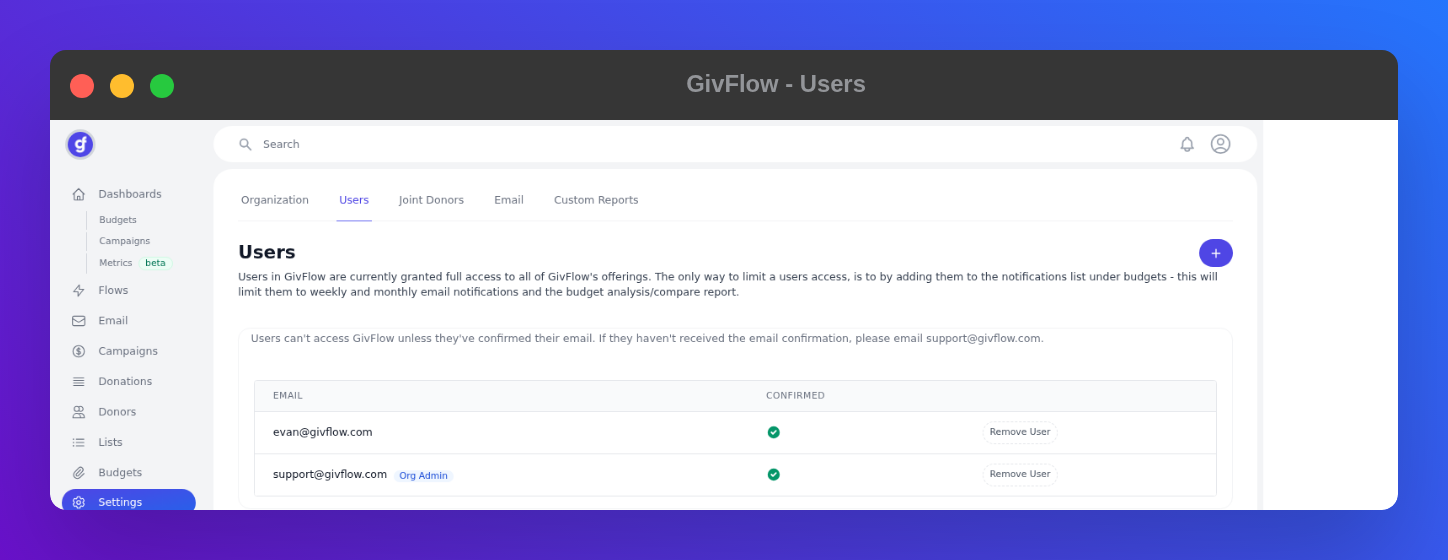
Users cannot access GivFlow unless they have confirmed their email. If they have not received the confirmation, email support@givflow.com.
On-screen: users are granted full access to all of GivFlow's offerings. The only way to limit access is to add them to the notifications list under budgets — that limits them to weekly and monthly email notifications and the budget analysis/compare report.
Invite someone
- On Settings → Users, click the purple +.
- They must confirm their email before they can sign in.
Invited people who confirm get full access. To give someone report-only access instead of a login, add them to Notifications on a budget.
Primary user
Lists sync from the primary GivFlow user — the person who connected Planning Center. There is no in-app control to transfer that role. Email support@givflow.com.
An Org Admin is who the Organization page asks to repair a broken Planning Center connection.
Remove a user
On Settings → Users, click Remove User on that row. Do not remove the only person who can keep the Planning Center connection alive. If they were the primary user, email support first.