
Show campaign progress on your website
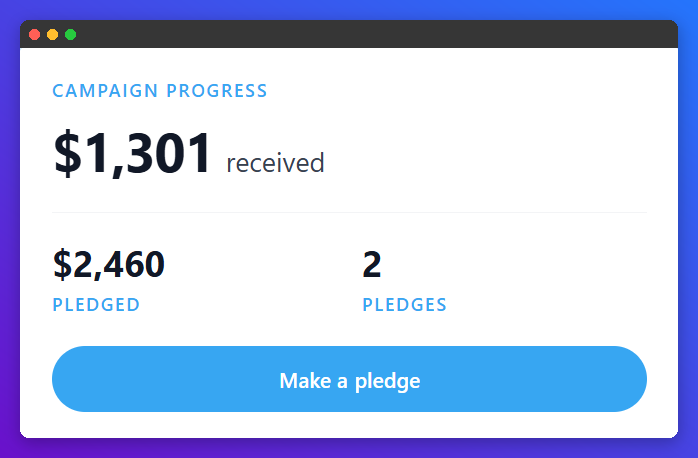
The campaign progress embed is a small card you can place on your church website to show how a pledge campaign is going. It shows the amount received, progress toward your goal, the total pledged, the number of pledges, and a button that opens your pledge form.
Turn on the embed
- In the left sidebar, click Campaigns and open a campaign.
- Click the Form tab.
- Check Show campaign progress embed.
- If you see Save the form to create the embed link, click Save form. GivFlow creates the campaign's five-character public code the first time it is needed.
- Under Embed code, click the copy button and paste the code into your website editor wherever you can add HTML.
Choose what shows
The embed code is an iframe with four settings at the end of its link, all set to 1 (shown). Change any of them to 0 to hide that part:
- showGoal: the percent of goal and progress bar (only shows when the campaign has a commitment goal)
- showPledged: the total pledged
- showCount: the number of pledges
- showButton: the button that opens the pledge form
To change the button wording, add &button=Give now (or your own words, up to 80 characters) to the link. The default is Make a pledge.
How the numbers work
- Received counts successful, non-refunded gifts to the campaign's target fund from the campaign start date (or the donation include date, if set).
- Pledged and Pledges count all commitments to the campaign, including joint donor amounts.
- The card uses the campaign's header and accent colors from the Form tab, and the campaign name as its page title.
- Numbers refresh about once a day, so new gifts and pledges can take up to 24 hours to show on your website.
Turn it off
Uncheck Show campaign progress embed and click Save form. The card then shows This campaign progress is not available. It can take up to 24 hours for websites to stop showing the numbers.