.png)
Campaign settings and the public form
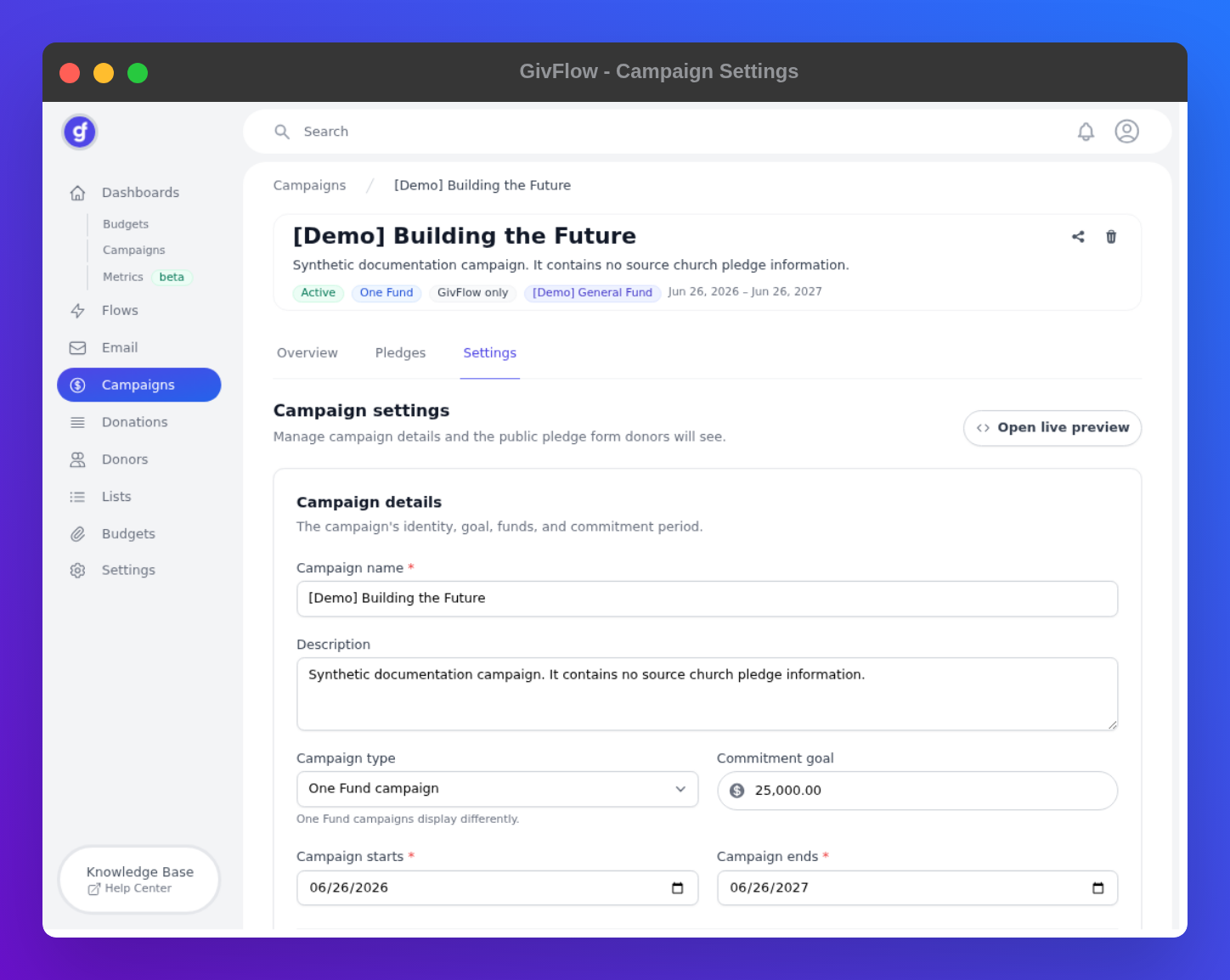
The public pledge form lives on the campaign Settings tab. Dashboards → Campaigns is analytics only. It is not this form.
Open Settings
- In the left sidebar, click Campaigns (below Email, not Dashboards → Campaigns).
- Open a campaign.
- Click the Settings tab.
The heading is Campaign settings, with Manage campaign details and the public pledge form donors will see.
Preview the form
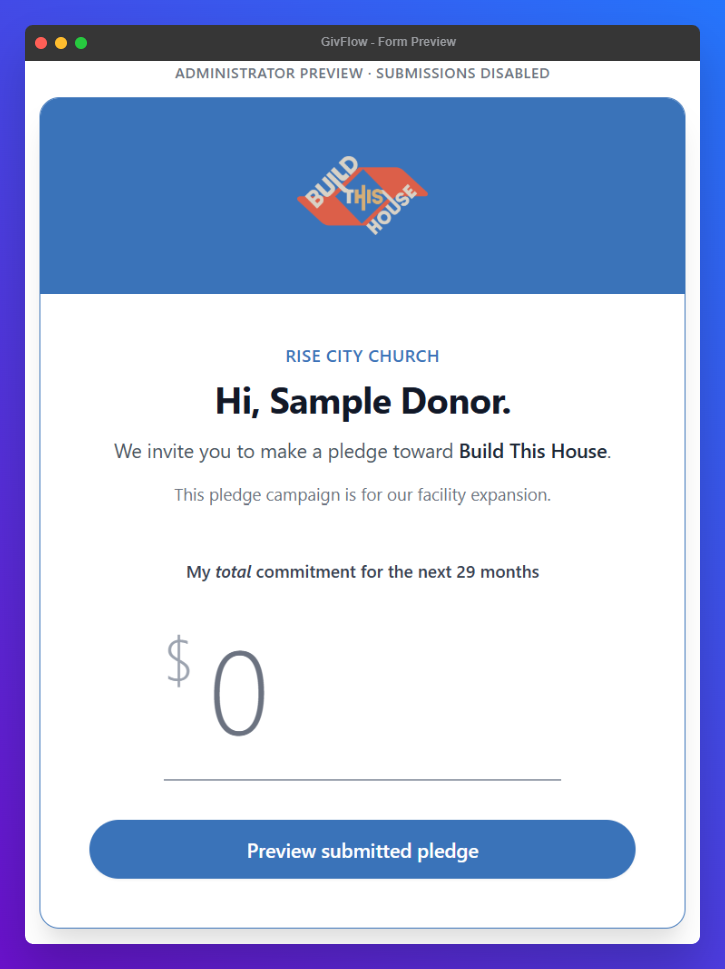
A FORM PREVIEW pane on the right updates as you edit. Open live preview renders the saved form with sample donor data and does not accept submissions.
Campaign details
- Campaign name (required)
- Description
- Campaign type: Traditional campaign or One Fund campaign. One Fund forms ask donors what they normally give and what they will give beyond that. See One Fund campaigns.
- Commitment goal
- Campaign starts and Campaign ends (required)
- Target fund: the fund GivFlow uses for the campaign's donations and progress.
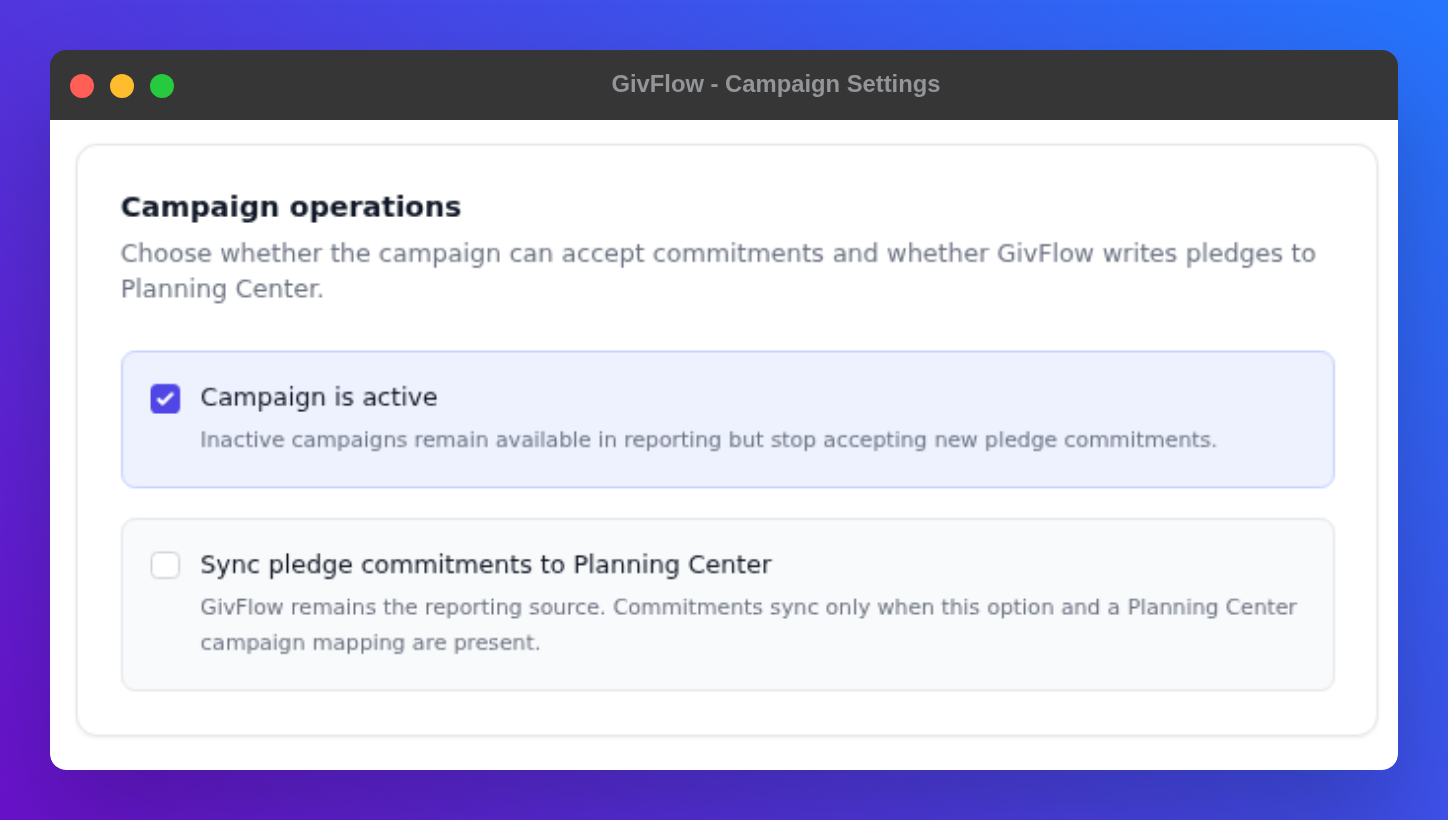
Campaign operations
Choose whether the campaign can accept commitments and whether GivFlow writes pledges to Planning Center.
- Campaign is active: Inactive campaigns remain available in reporting but stop accepting new pledge commitments.
- Sync pledge commitments to Planning Center (optional): GivFlow remains the reporting source. Commitments sync only when this option and a Planning Center campaign mapping are present.
Public pledge form
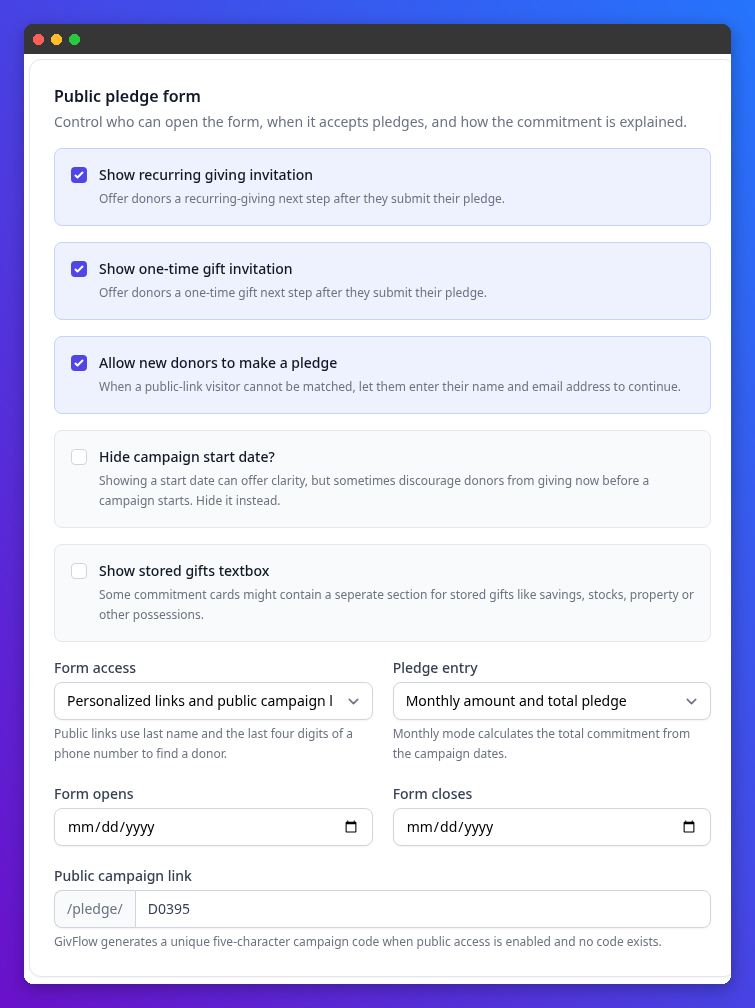
These controls shape what donors see and how they get to the form.
- Show recurring giving invitation: offers a recurring-giving next step after the donor submits.
- Show one-time gift invitation: offers a one-time gift next step after the donor submits.
- Allow new donors to make a pledge: when a public-link visitor cannot be matched to a record, they can enter their name and email address to continue.
- Hide campaign start date?: hides the start date on the form and the thank-you page. A start date can add clarity, but it can also discourage donors from giving now if the campaign has not started yet.
- Show stored gifts textbox: adds an optional one-time amount for gifts from savings, stocks, property, or other possessions. When it is on, use Stored gifts question to set the wording donors see above that amount (up to 500 characters). If you leave it blank, donors see Would you like to include a gift from stored resources? A stored gift is added once to the donor's total pledge.
- Form access: Personalized links only, or Personalized links and public campaign link. Public links use last name and last four digits of a phone number to find a record.
- Pledge entry: Total pledge amount, or Monthly amount and total pledge. Monthly mode calculates the total from campaign dates.
- Form opens and Form closes: optional dates.
- Public campaign link: a five-character code GivFlow generates when public access is enabled.
Form appearance and copy
These optional fields override organization defaults:
- Logo image URL: an HTTPS URL, not a file uploader
- Header background
- Accent color
- Introduction
- Submit button text
- Thank-you message
Save settings stores changes to this page.