.png)
Collect pledges
Share a public campaign link so donors can look themselves up and make a pledge. The URL uses the five-character code from campaign Settings.
Before you start
- The campaign is Active.
- Form access is Personalized links and public campaign link.
- Optional: Form opens and Form closes, the dates when the form accepts pledges.
Set these on the campaign Settings tab. See Campaign settings and the public form.
Share the public link
- In the left sidebar, click Campaigns.
- Open the campaign.
- Click the share icon in the campaign header (left of the delete icon).
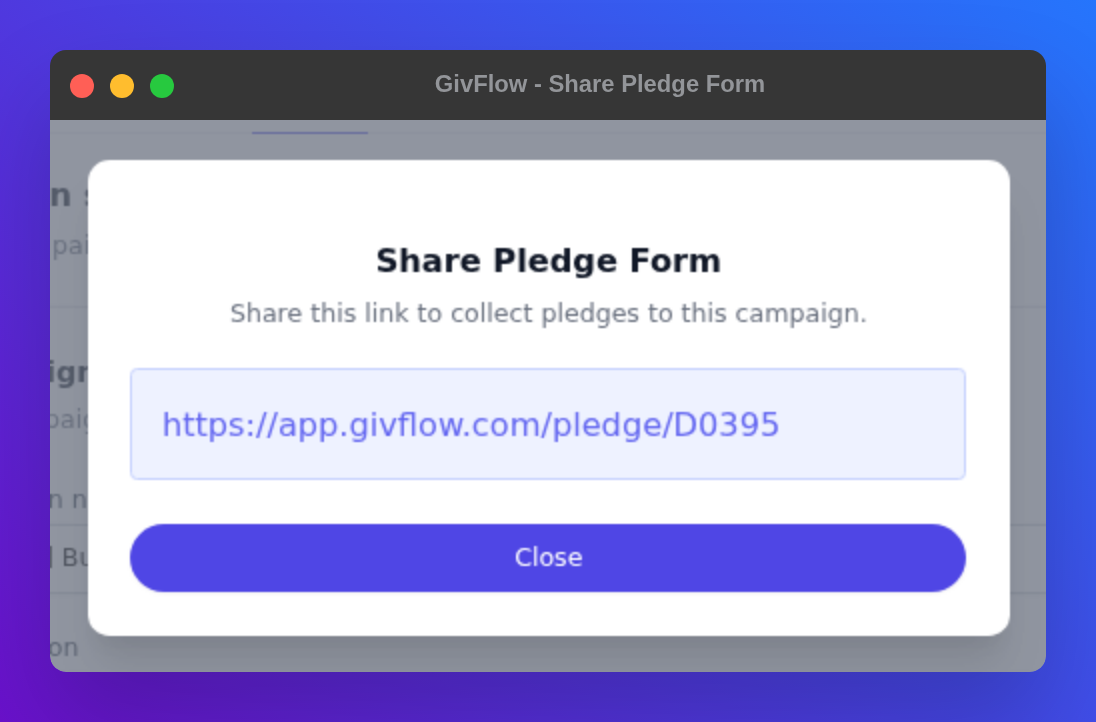
Share Pledge Form opens: Share this link to collect pledges to this campaign. Copy the URL. It looks like https://app.givflow.com/pledge/{code} . Click Close when you are done.
The code matches Public campaign link on Settings. GivFlow generates it when public access is enabled.
What donors see
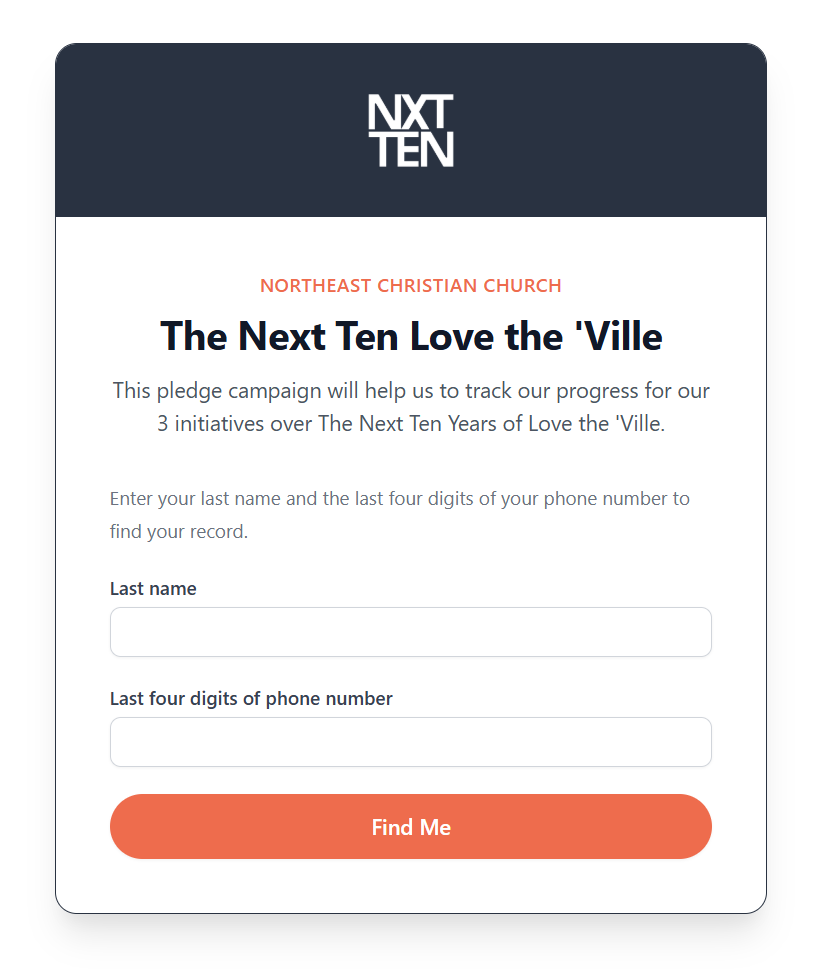
Donors open https://app.givflow.com/pledge/{code} . The page is titled Make a pledge. They see your church name and campaign, then enter Last name and Last four digits of phone number and click Find Me. GivFlow uses that to find their record.
After GivFlow finds them, donors see the pledge form for your campaign.
- Traditional campaign: donors enter a total pledge, or a monthly amount if Pledge entry is set to monthly. GivFlow shows the total for the campaign dates.
- One Fund campaign: donors enter what they normally give and what they will give in addition. A summary shows the combined amount, the number of months, and the total campaign pledge. See One Fund campaigns.
- Stored gifts: if Show stored gifts textbox is on, donors can add an optional one-time amount. It is added once to their total pledge.
- If a donor has already given to the campaign, the form shows that amount and includes it in their total campaign pledge.

When they submit, the thank-you page confirms their pledge amount. If they already gave to the campaign, it says Your new pledge of followed by the new amount. It also shows when their commitment begins, or how many months of the campaign remain. If Hide campaign start date? is on, the start date is left off. Any Thank-you message from Settings appears below.
Unmatched visitors and next steps
If Allow new donors to make a pledge is on, a public-link visitor who cannot be matched can enter their name and email address to continue.
After they submit, the form can offer a recurring-giving invitation and a one-time gift invitation. Turn Show recurring giving invitation and Show one-time gift invitation on or off on Settings. The suggested recurring amount does not include stored gifts.
Collecting by email
Collecting pledges by bulk email is coming soon. Until then, share the public campaign link.