.png)
View pledges
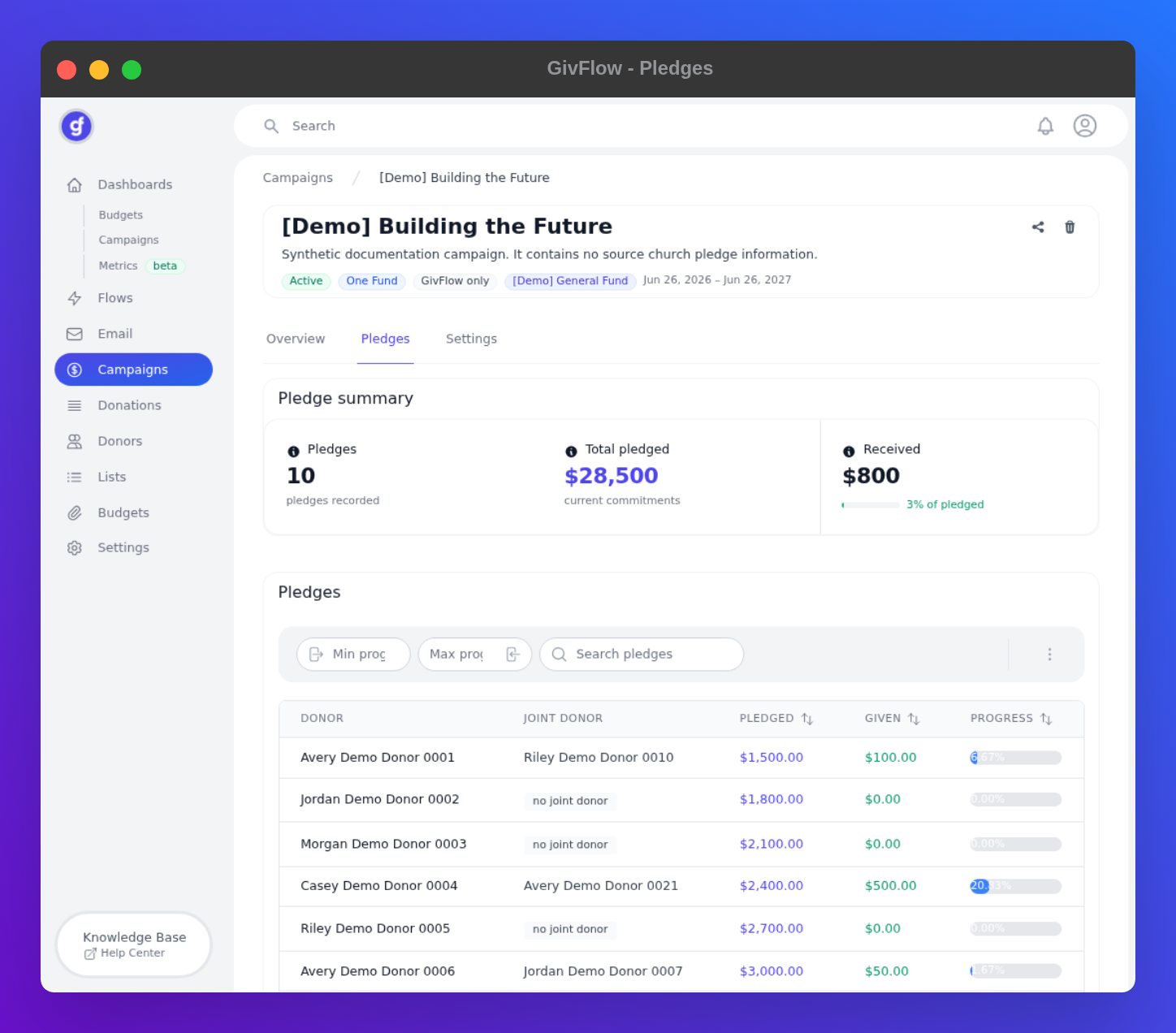
The campaign Pledges tab is the confirmed-pledge list for that campaign: how many pledges are recorded, how much is committed, how much has been received, and each donor’s progress.
This is not Dashboards → Campaigns. That dashboard is analytics. Use sidebar Campaigns (below Email) to open a campaign, then Pledges.
Open Pledges
- In the left sidebar, click Campaigns (below Email, not Dashboards → Campaigns).
- Open the campaign.
- Click the Pledges tab.
Read the summary
Three tiles sit above the table. Each has an info icon.
- Pledges: count of pledges recorded (for example 10)
- Total pledged: current commitments (for example $28,500)
- Received: dollars given toward pledges, with a percent of pledged (for example $800, 3% of pledged)
Demo numbers are examples.
Filter and search
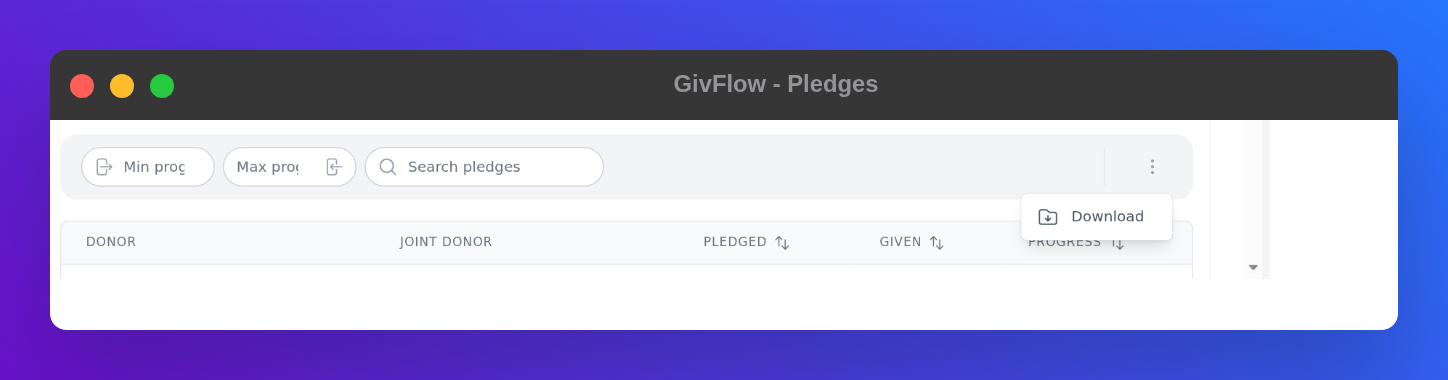
The Pledges card includes Min progress, Max progress, and Search pledges. Use those to narrow the table.
The ⋮ control (Open options) has Download. That is the only item in the menu.
Read the table
Columns:
- DONOR: primary donor
- JOINT DONOR: a joint donor name, or a no joint donor pill
- PLEDGED: the donor's total campaign commitment
- GIVEN: amount received
- PROGRESS: a percent bar (given vs pledged)
PLEDGED, GIVEN, and PROGRESS can be sorted.
The footer shows the page and result count (for example Page 1 of 1 / 10 results) with Previous and Next. Use Previous / Next when there is more than one page.
What PLEDGED includes
PLEDGED is the full campaign commitment the donor submitted. It includes anything they had already given to the campaign before they pledged, plus any stored gift. For One Fund campaigns it includes both their usual giving and their additional commitment.
For campaigns that sync with Planning Center, GIVEN updates from Planning Center each time GivFlow syncs.
To see gifts to the campaign fund from people who have not pledged, open the Donations tab. See View campaign donations.
To collect pledges, share the public campaign link. See Collect pledges.